
Google Business Profile Checklist for a Kolkata Small Business
Use this Google Business Profile checklist to check your Kolkata business details, categories, services, photos, opening hours and contact links.

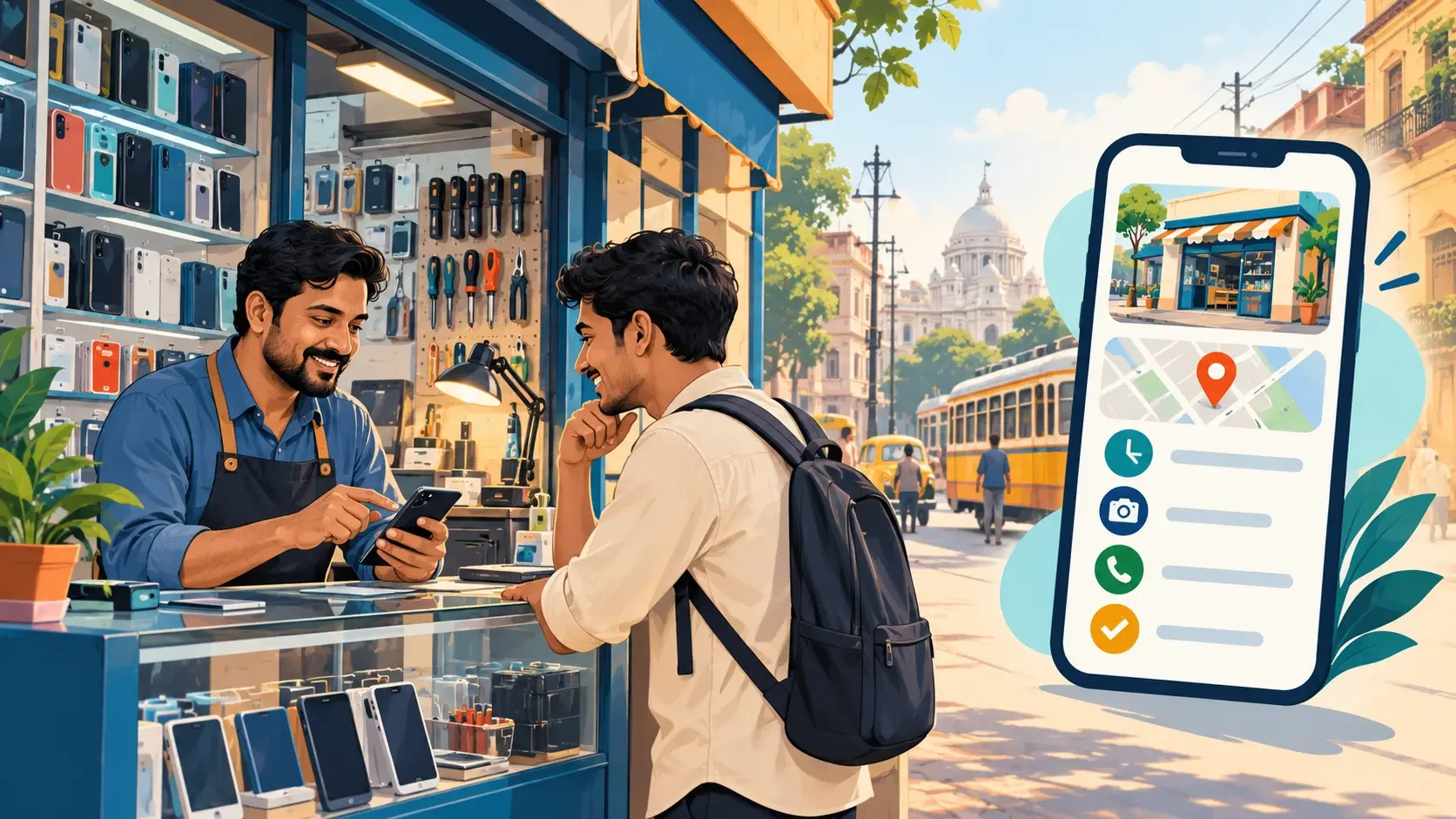
Your customer finds your shop on Google, taps Directions and reaches the wrong lane. Or they arrive on a day when you keep the shutters down. Before you spend money attracting more enquiries, check whether your business details help someone reach you.
This Google Business Profile checklist covers the details you need to check: your name, location, category, services, hours, photos and contact links. Google Business Profile is the business listing you manage on Google Search and Maps. You can add or claim an eligible business at no charge.
For the examples below, imagine a small mobile repair shop in Garia called Garia Phone Care. This is a fictional shop, so the examples show how to make decisions rather than report a client's results.
Start with details that could cost you a visit or an enquiry.
- Fix wrong directions, closed-day information and broken contact links first.
- Describe the work you actually do, using words your customer understands.
- Check the public listing after you save changes.
On this page (12)
- 1. Find your existing profile before creating another one
- 2. Match your business name to your signboard
- 3. Check the address and map pin separately
- 4. Choose a category that describes your main business
- 5. List services clearly enough for someone to enquire
- 6. Set hours for the days you actually serve customers
- 7. Use the description to explain what you offer
- 8. Add photos that help someone recognise your shop
- 9. Test your phone, website and WhatsApp links
- 10. Ask for honest reviews and reply to useful feedback
- Check your profile regularly and track actual enquiries
- Need help checking your Kolkata business profile?
1. Find your existing profile before creating another one
Search Google Maps for your business name and locality. Check the address and photos to confirm that you have found the right business.
If a listing already exists, follow Google's steps to claim it. If another person owns the verified profile, request ownership through the process Google provides. Start a new profile only after you confirm that your business does not already have one. Google's claiming and ownership instructions explain both routes.
Then sign in with the Google account you use to manage the business. On Search, open your profile and select Edit profile. Google notes that the available controls can differ between Search, Maps and devices in its profile editing guide.
Before editing, keep your current signboard photo, address, phone number and service list beside you. That makes it easier to spot an old detail instead of copying it again.
2. Match your business name to your signboard
Use the name customers know from your shopfront and other business materials. Google asks you to use your real business name and warns against adding unnecessary information in its business representation guidelines.
For our example, use “Garia Phone Care” if that is the shop's actual name. Adding “Best Mobile Repair in Kolkata, Cheap Screen Replacement” turns the name field into an advertisement.
Keep service details in the service section. Put opening hours in the hours section. Each field has a job.
Check your website too. If the signboard says one name and the website uses an older name, confirm which name the business currently uses before you edit the listing.
3. Check the address and map pin separately
Read your address, then inspect where the pin sits. Treat these as two checks.
For the repair shop, ask someone to open the public listing and follow Directions towards the customer entrance. Does the route lead to the shopfront? Does a nearby lane or building entrance make the location confusing? Use a clear exterior photo to help the person recognise the final destination.
If you visit customers and do not receive them at your business address, Google says to hide that address and show your service area. If you receive customers at your premises and also visit or deliver to them, Google describes this as a hybrid business. Follow its service-area guidance.
A repair technician who works from home and only collects phones from customers should check those rules before displaying a residential address. For service areas, choose places you actually cover. A longer list does not make a distant job practical.
4. Choose a category that describes your main business
Your primary category tells Google what kind of business you run. Choose the most specific suitable option from the available list. Google does not let you create your own category, and it advises against adding a category for every service or product. See its category selection guide.
For Garia Phone Care, search the category list for the closest repair category if repairs form the main business. A shop that mainly sells new phones needs to assess a retail category instead.
Ask yourself: what does a customer mainly come here to do? Start there.
Add another category only when it describes a real part of your business. Selling a few phone covers does not automatically make every accessory-related category useful. Google also notes that a category change can trigger another verification request, so make deliberate changes.
5. List services clearly enough for someone to enquire
If your profile has a Services section, open Edit services and check each entry. Google lets eligible businesses choose suggested services, add custom services, and include descriptions and prices. Availability depends on the business category. Its services guide explains the options.
For a repair shop, a useful list could include:
- Screen replacement
- Battery replacement
- Charging port repair
- Speaker and microphone repair
Include an item only if you provide it. Then add the detail that helps someone decide whether to contact you. For example: “We inspect charging faults and explain the repair options before starting work.” Use that wording only if it matches your process.
If the price changes by phone model, explain how you quote for the job. Avoid a low advertised figure that applies to one model while your description suggests it covers all phones.
Keep custom service names simple. Google tells you to leave prices and phone numbers out of those names; use the separate detail fields where available.
6. Set hours for the days you actually serve customers
Write down your regular weekly opening times before you update the profile. Include your weekly closing day.
Suppose the example shop opens from 10 am to 8 pm and closes on Tuesday. Those are the hours to enter. Do not choose 24 hours because you sometimes answer a late WhatsApp message.
For a short change around Kali Puja, Diwali or another occasion, use Special hours. Google provides this option so you can change hours for particular dates without replacing the regular schedule. Follow its Special hours instructions.
Agree on the festival schedule with your staff first. An accurate closing time needs someone to check when the shop will actually close, especially if you plan a half-day.
7. Use the description to explain what you offer
Write a short description that answers three questions: what do you do, where do you work, and what should a customer know before contacting you?
Our fictional shop could write:
Garia Phone Care offers mobile phone repairs in Garia, Kolkata. Services include screen replacement, battery replacement and charging port repairs. Bring your phone to the shop for an inspection and a repair estimate.
Every part of that description needs to match the shop's actual service. Do not add “authorised service centre” unless you have the relevant authorisation.
Google's description rules prohibit links in this field and say the description should not focus on promotions or prices. Put your website link in the website field.
8. Add photos that help someone recognise your shop
Start with a clear photo of the entrance and signboard. Then show the counter, work area and relevant products or services. Google's photo guidance specifically notes that exterior photos help customers recognise a business when they visit.
For Garia Phone Care, choose a small set with different purposes:
- A street-level entrance photo that shows the signboard
- An inside view that shows where customers bring their phones
- A clear view of the repair workspace
- An accurate photo of accessories the shop currently sells
Avoid filling the gallery with versions of the same festival poster. Someone trying to find your entrance needs to see the entrance.
Google recommends well-lit, in-focus photos that represent reality, with no significant alterations or excessive filters. It accepts JPG and PNG files between 10 KB and 5 MB and recommends 720 × 720 pixels. Use those checks before uploading.
9. Test your phone, website and WhatsApp links
Check the full contact journey on a phone. Tap Call, open the website and try the messaging option if your listing shows one.
Use a number your business currently answers. Google's phone number instructions show how to update it under Edit profile, then Contact. If an old employee's number still appears, replace it and make a test call.
Open your website link as a customer would. Can you quickly find the shop's address and repair information? Does the contact page work on mobile? If those pages need work, consider Chandan Digital's website development service.
For WhatsApp, look for Chat under Edit profile, then Contact. Google supports WhatsApp or text messaging for eligible profiles, but says availability varies by region and profile. Follow its chat setup instructions if the option appears.
After saving, open the public listing and test the link. A successful test should reach the business account where you handle customer enquiries.
10. Ask for honest reviews and reply to useful feedback
After completing a job, ask the customer to share their experience. Keep the request neutral. You could say: “If you would like to share your experience, here is our Google review link.”
Google allows review requests through a link or QR code, a square barcode customers can scan with a phone. It prohibits free goods, discounts and other incentives in exchange for posting, changing or removing reviews. Its review guidance explains the policy.
Read the feedback before replying. If someone says they could not find your shop, check the directions and exterior photos. If they mention an unexpected repair charge, review how you explain estimates. That gives the feedback a practical use beyond the rating.
Check your profile regularly and track actual enquiries
Set a regular reminder to review your public listing. Update it sooner whenever your number, services, location or opening times change.
Then open Performance in your profile and review the figures available to you. Google defines Calls as clicks on the call button and Website clicks as clicks on your website link. These figures do not tell you how many people completed a repair booking. See Google's performance metric definitions.
Keep a separate count of enquiries and completed jobs. Ask new customers how they found you. This helps you connect profile activity with what happens at the counter.
And keep ranking expectations sensible. Google says local results mainly depend on relevance, distance and prominence, meaning how well-known your business is. It also says you cannot request or pay for a better local ranking. Read its local ranking guidance before accepting a guaranteed position from anyone.
Need help checking your Kolkata business profile?
Start with the problem that affects your customer most. Fix a wrong number before adding another photo. Check a confusing entrance before writing a longer description.
Chandan Digital's Google Business Profile service covers profile creation, categories, service details, photos, posts and review replies. You can contact Chandan Digital with your profile link and the details you want help checking.
About the author
Chandan MandalFounder
I am Chandan Mandal, Founder and CEO of Chandan Digital (formerly Digital Tatva), a Kolkata-based digital marketing agency established on 27 August 2026. We help small and medium-sized businesses grow through SEO, web development, performance marketing, digital advertising and content strategy.
Need Help Growing Your Business Online?
Talk to our team about your goals and get a clear, honest plan for what to do next.
Get a Free ConsultationRelated Articles

SEO vs Google Ads: Which One Should a Small Business Pay for First?
SEO vs Google Ads for small businesses: compare costs, timing and lead generation to decide where your marketing budget should go first. Explore more.
Read article
How to Choose the Right SEO Company in Kolkata: A Practical Guide
Planning to hire an SEO company in Kolkata? Learn what to ask, how to compare packages, which reports matter and the red flags to avoid before you sign.
Read article